How to Restore a Photo with AI
Upload your photo, review the AI-generated result beside the original, and download it if you are happy with the changes.
Upload a Photo
Upload a JPEG, PNG, or WebP image up to 10 MB. A clear, well-lit scan or photo gives the AI more source detail to work with.
Generate a Restored Image
Choose restoration or colorization. ImgHeal uses AI to generate an image from your upload. AI may change details in the photo.
Compare the Result
Use the comparison slider to view the original and generated images side by side. Results vary, so check details that matter to you.
Download the Image
Download the generated image if it meets your needs. Completed jobs are listed in your account history.
Photo Restoration Tools
Explore Dedicated Restoration Services
Choose a photo restoration workflow based on the image you want to improve.
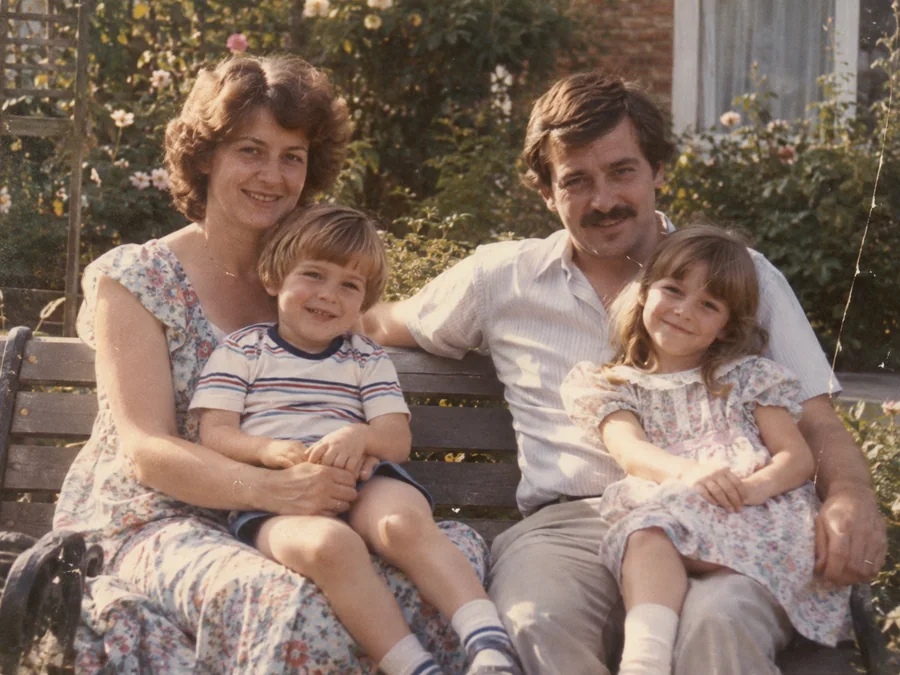
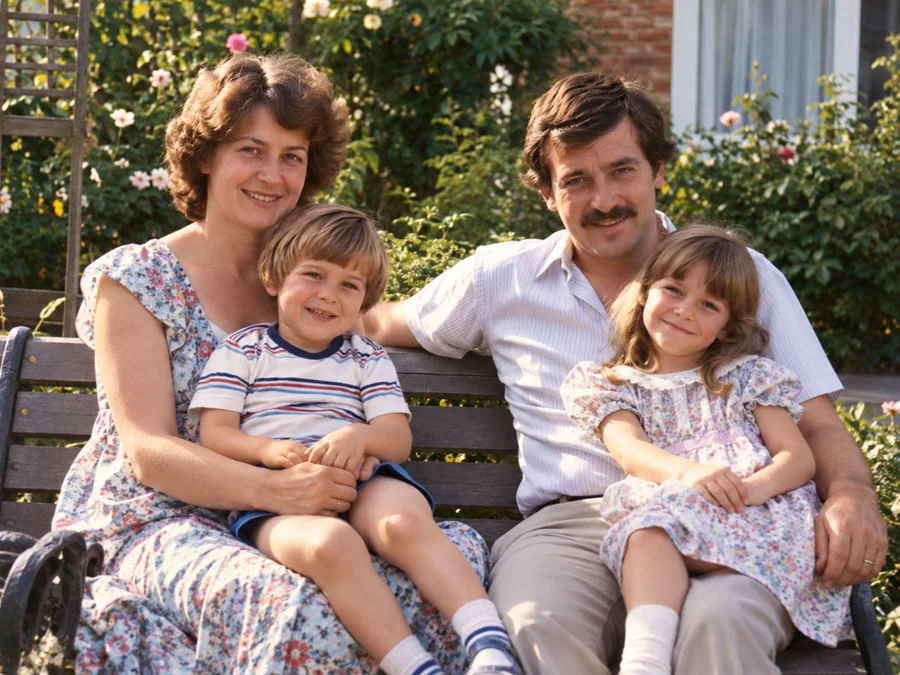 BeforeAfterIllustrative
AI Photo Restoration
Use AI to create a restored version of an old or damaged photograph.
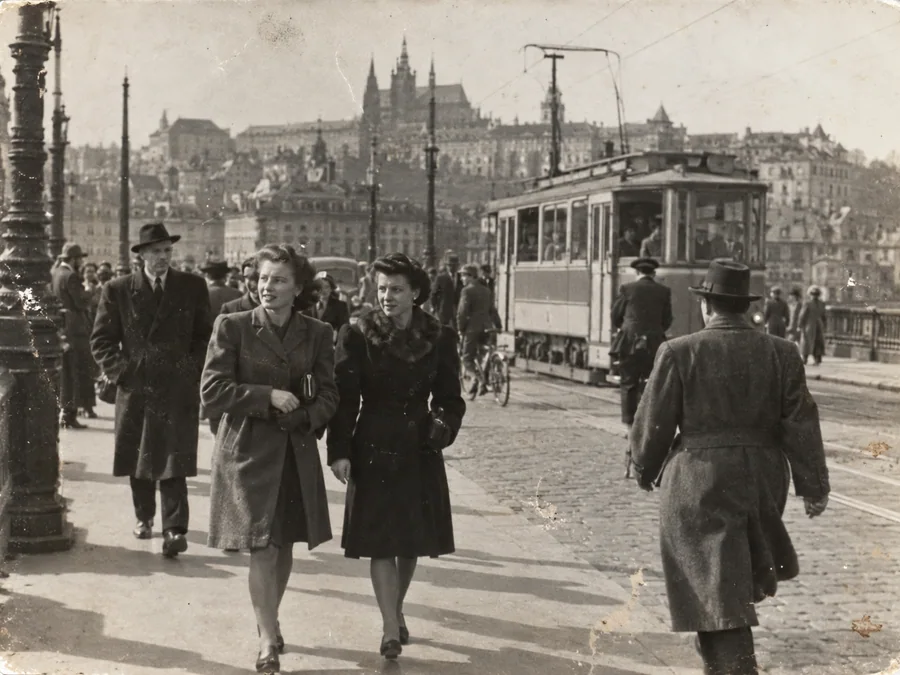
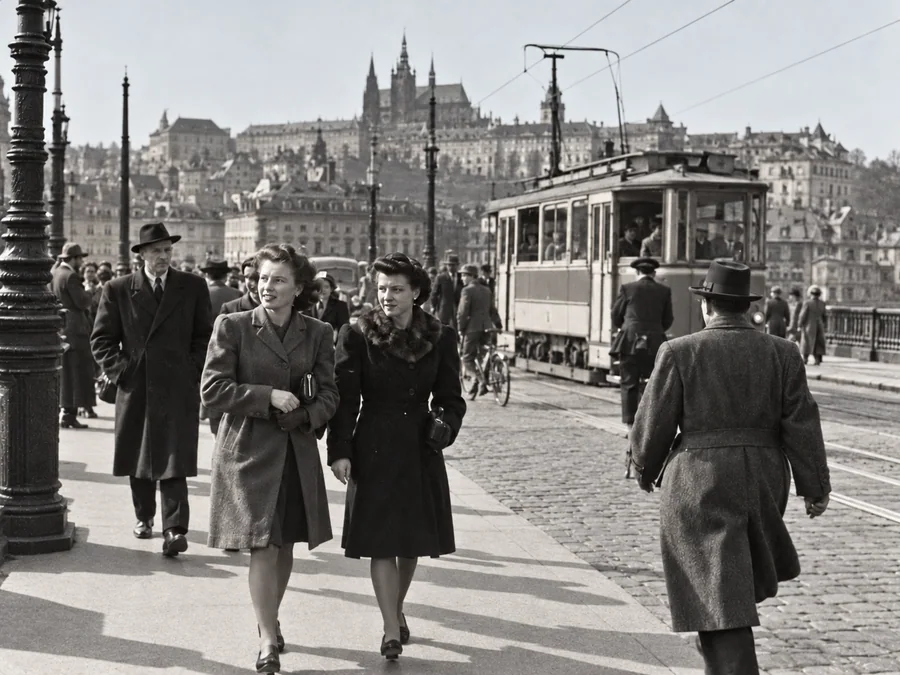 BeforeAfterIllustrative
Restore Old Photos
Try AI restoration on a faded, scratched, or damaged old photograph.
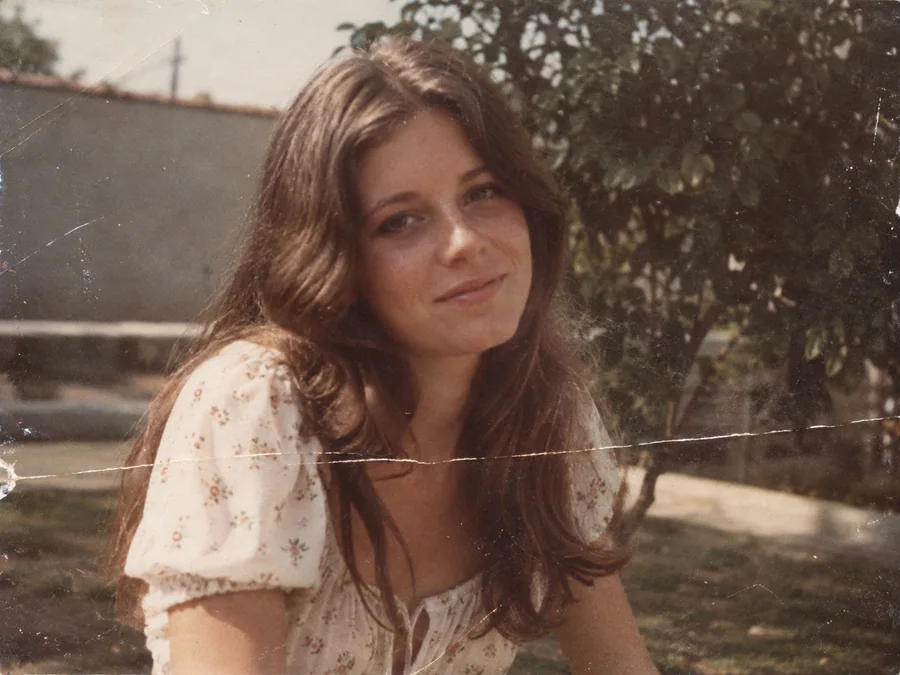
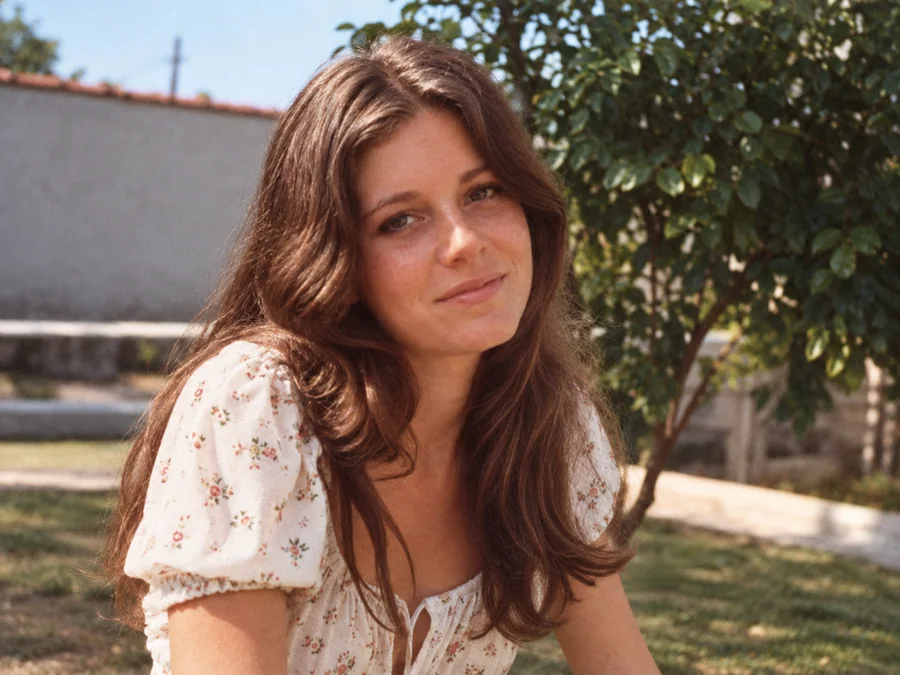 BeforeAfterIllustrative
Remove Scratches & Creases
Try AI restoration on a photo with scratches or creases.
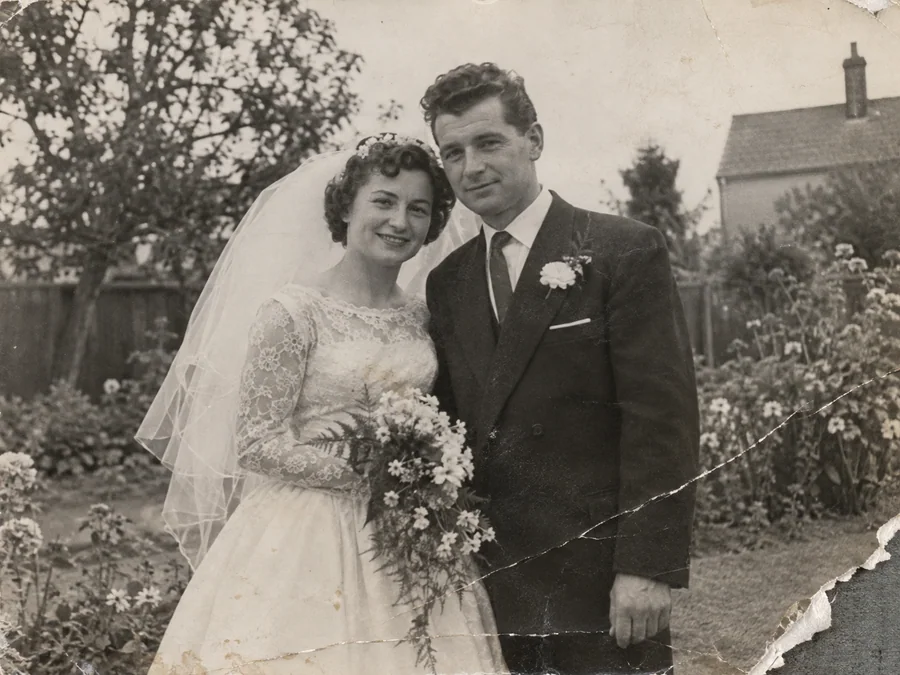
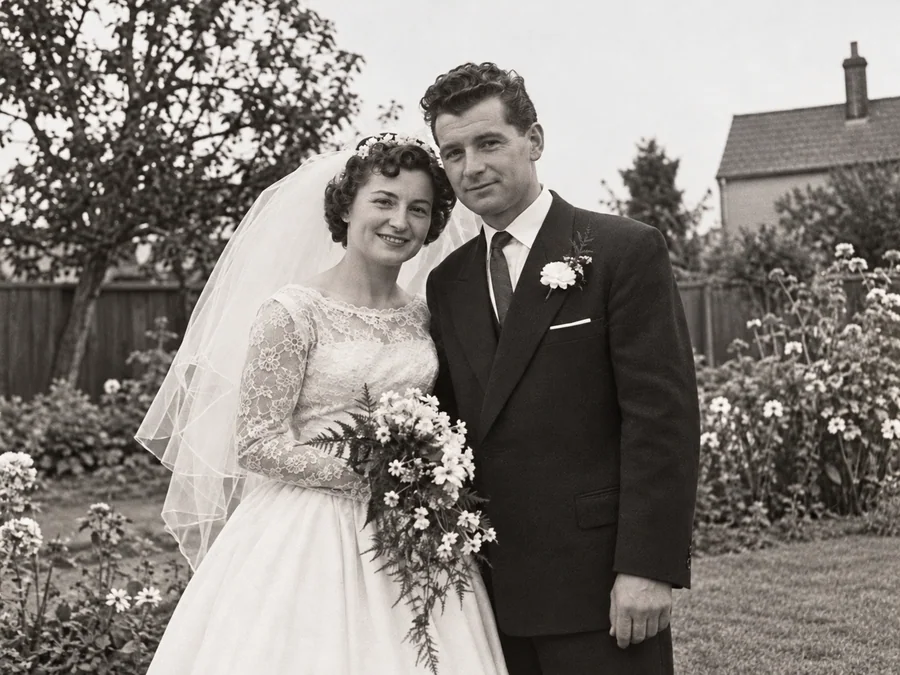 BeforeAfterIllustrative
Repair Damaged Photos
Generate a restored version of a torn, creased, or damaged photo.
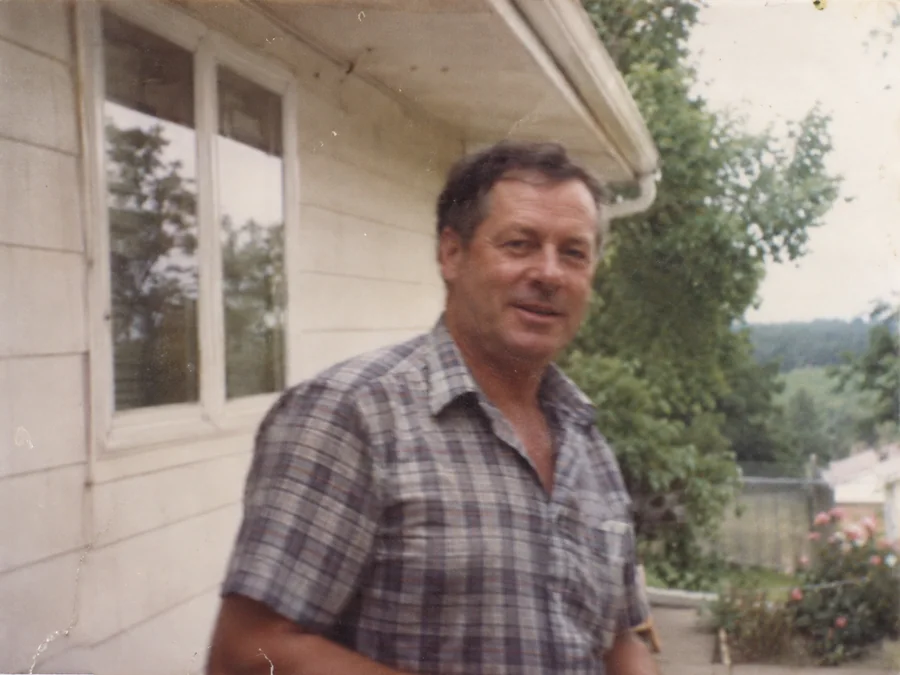
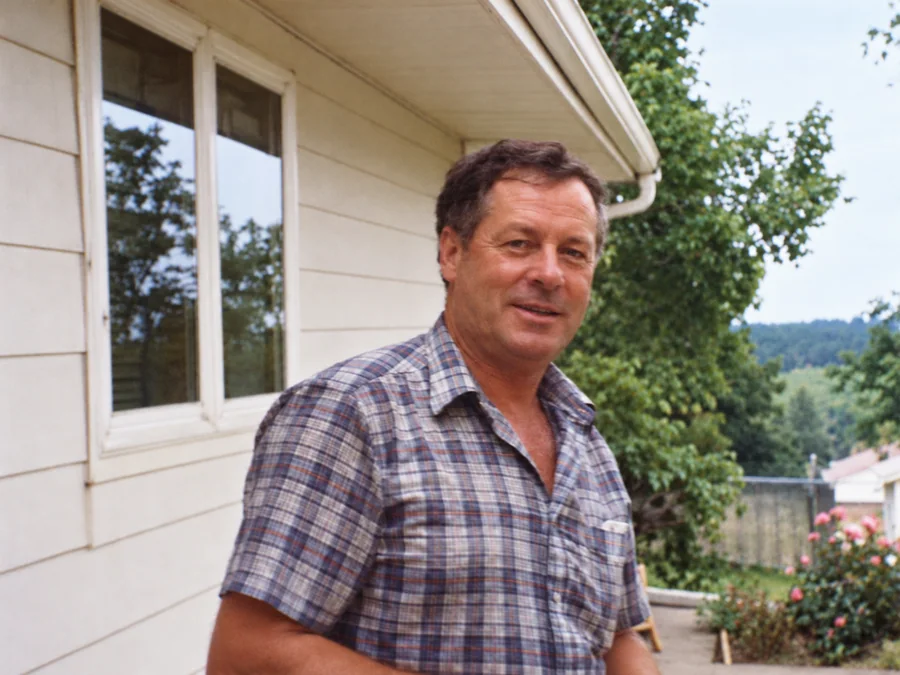 BeforeAfterIllustrative
Fix Blurry Photos
Try AI restoration on a soft or blurry photo. Results vary by image.
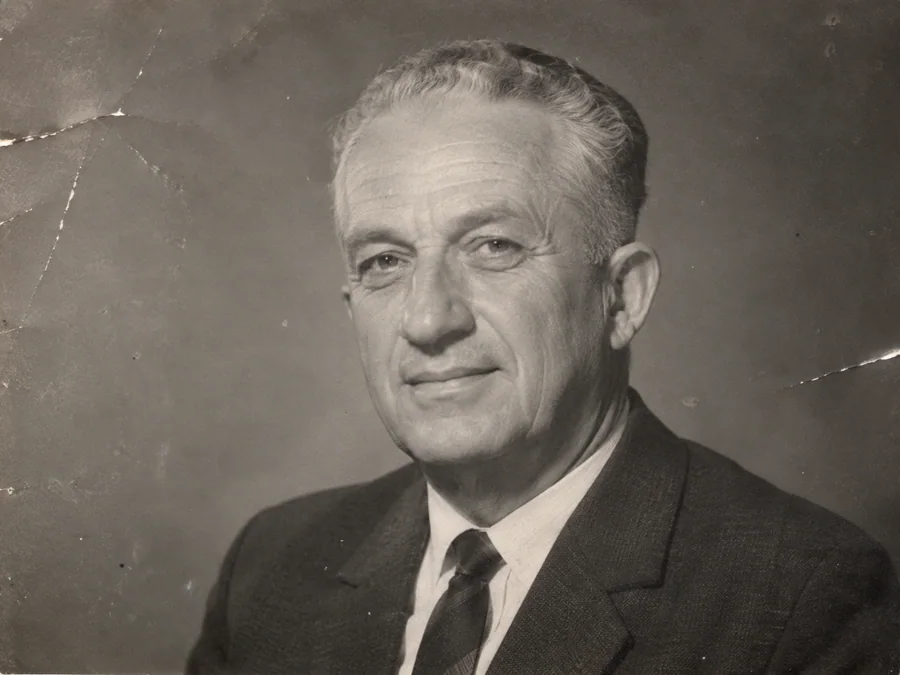
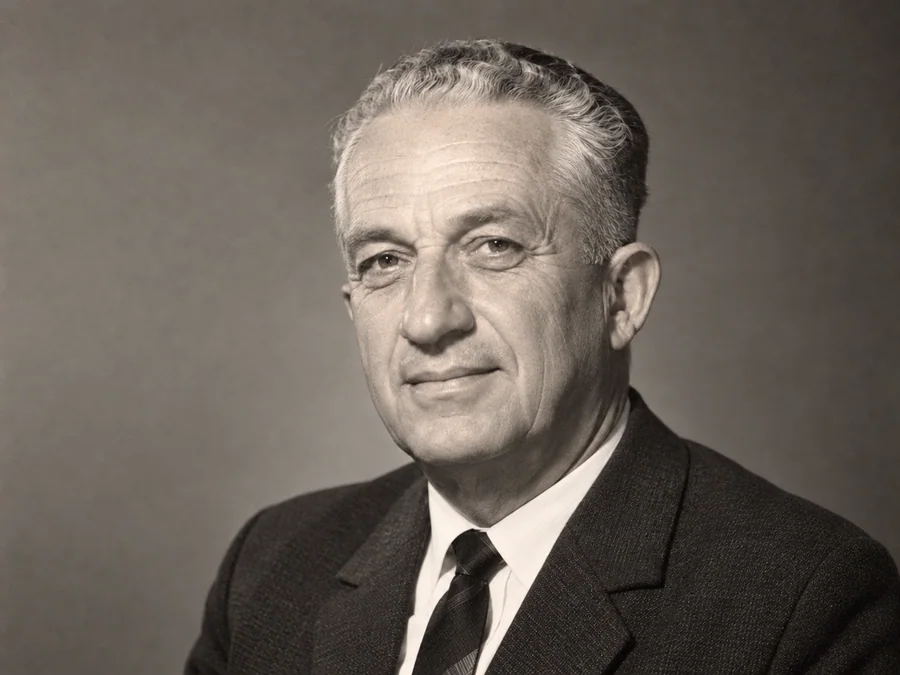 BeforeAfterIllustrative
AI Face Restoration
Try AI restoration on an old portrait and compare the result.
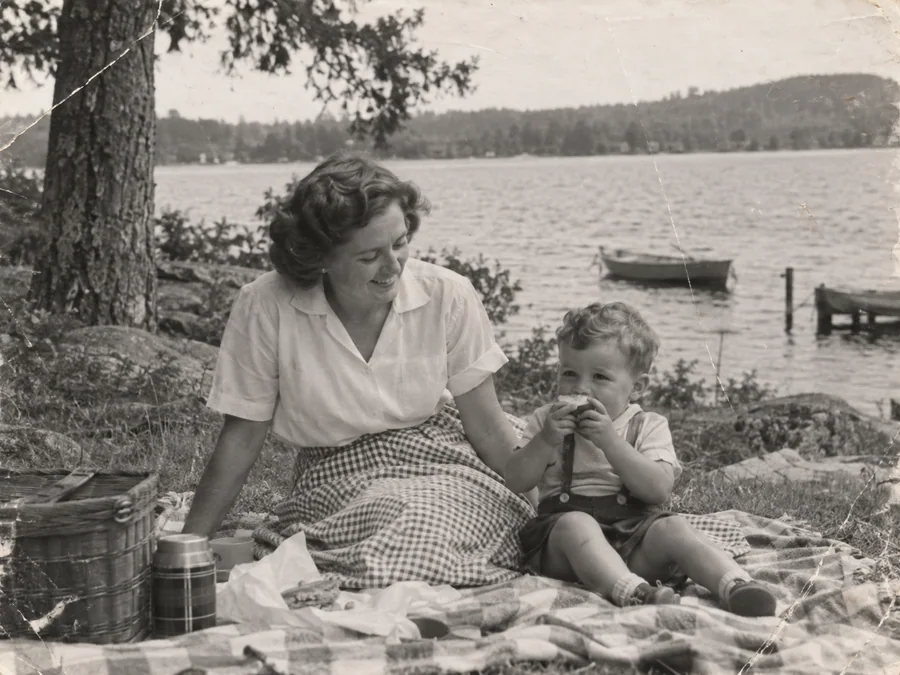
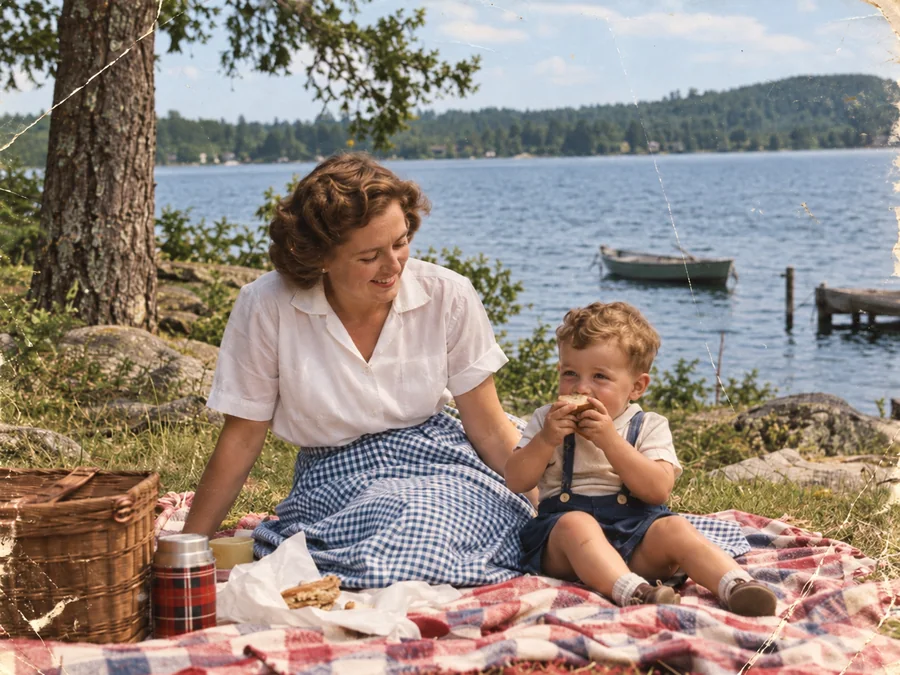 BeforeAfterIllustrative
Colorize B&W Photos
Generate AI color for a black-and-white or sepia photo.
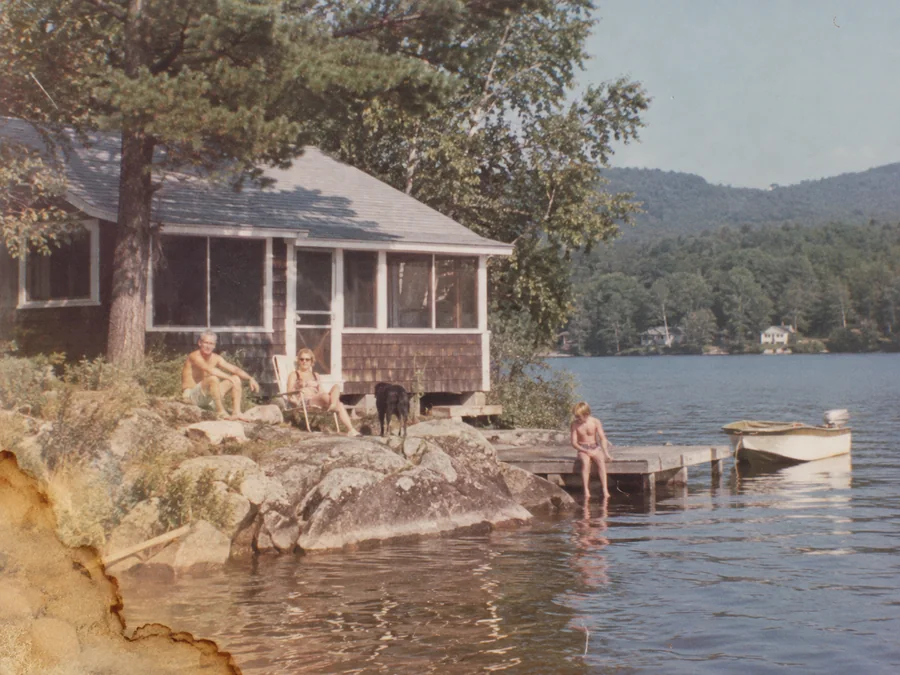
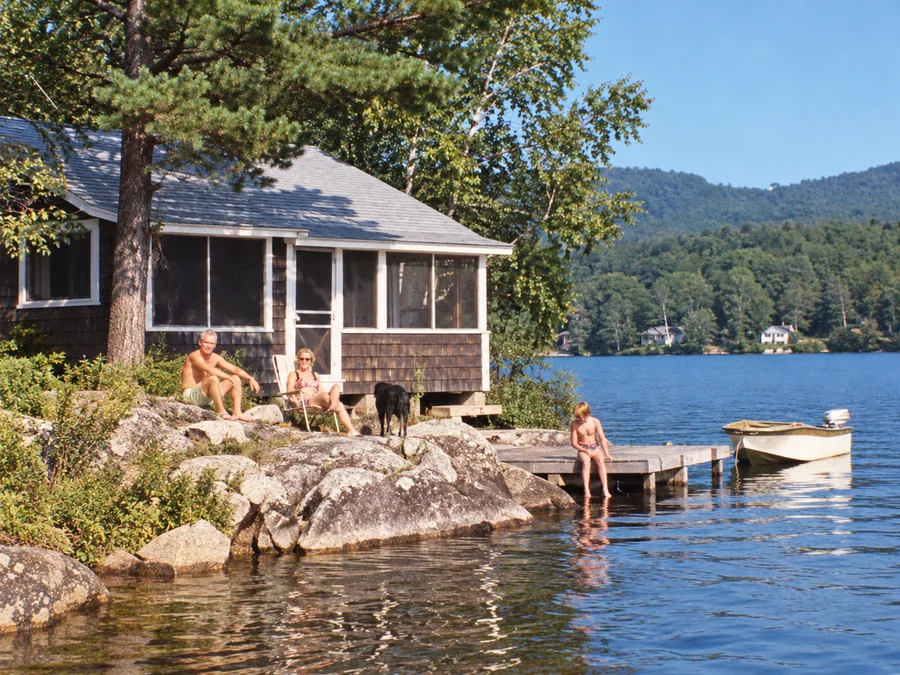 BeforeAfterIllustrative
Water Damage Repair
Try AI restoration on photos with water marks or stains.
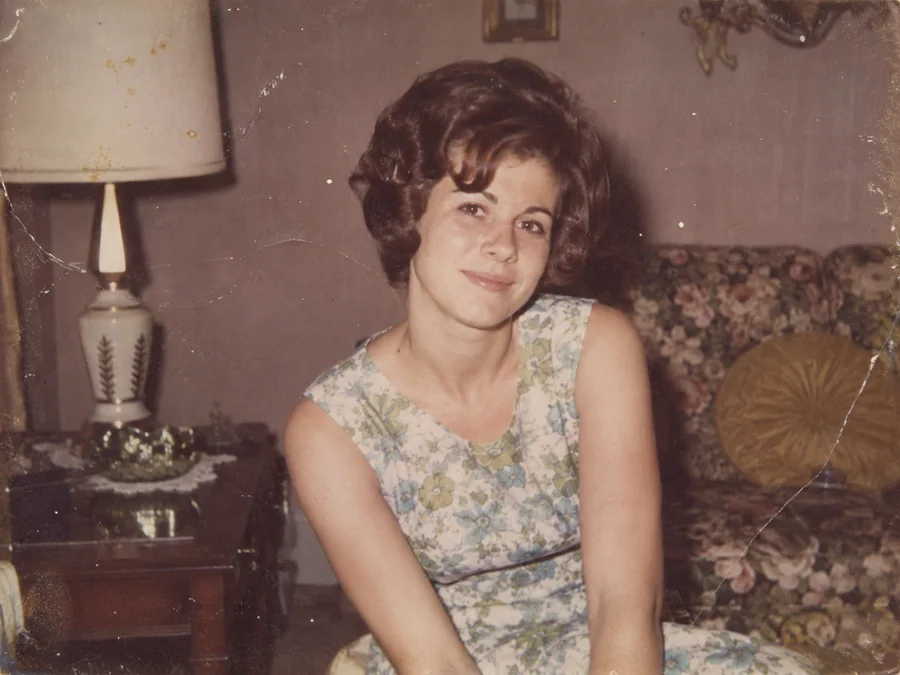
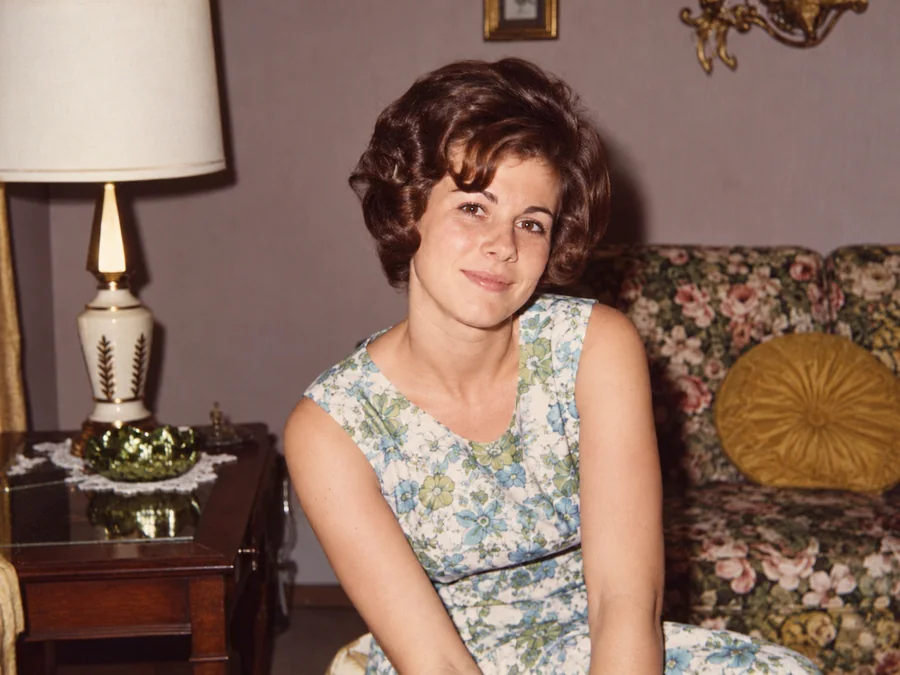 BeforeAfterIllustrative
Restore Vintage Photos
Try AI restoration on a vintage or faded photograph.
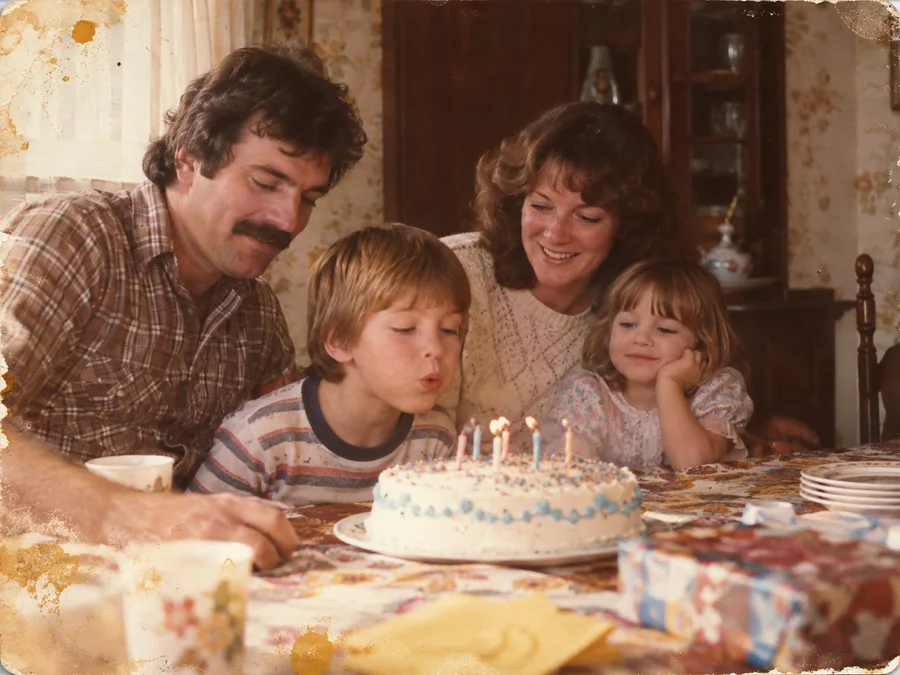
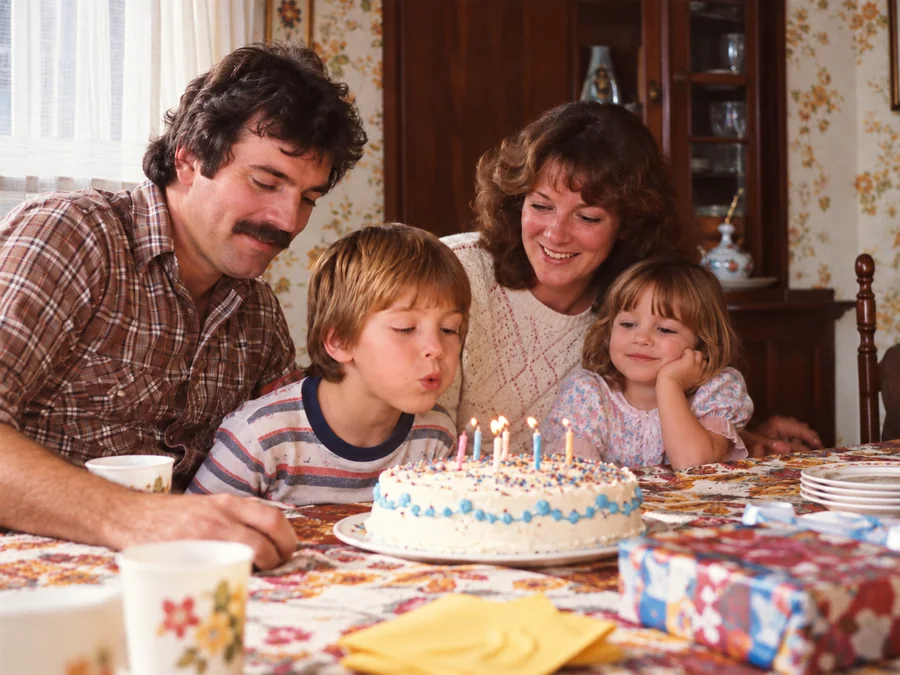 BeforeAfterIllustrative
Restore Family Photos
Create a restored version of an old family photo.