AI Photo Restoration for Old and Damaged Photos
Restore an old or damaged photo with AI. Review the generated result beside your original before deciding whether to download it.
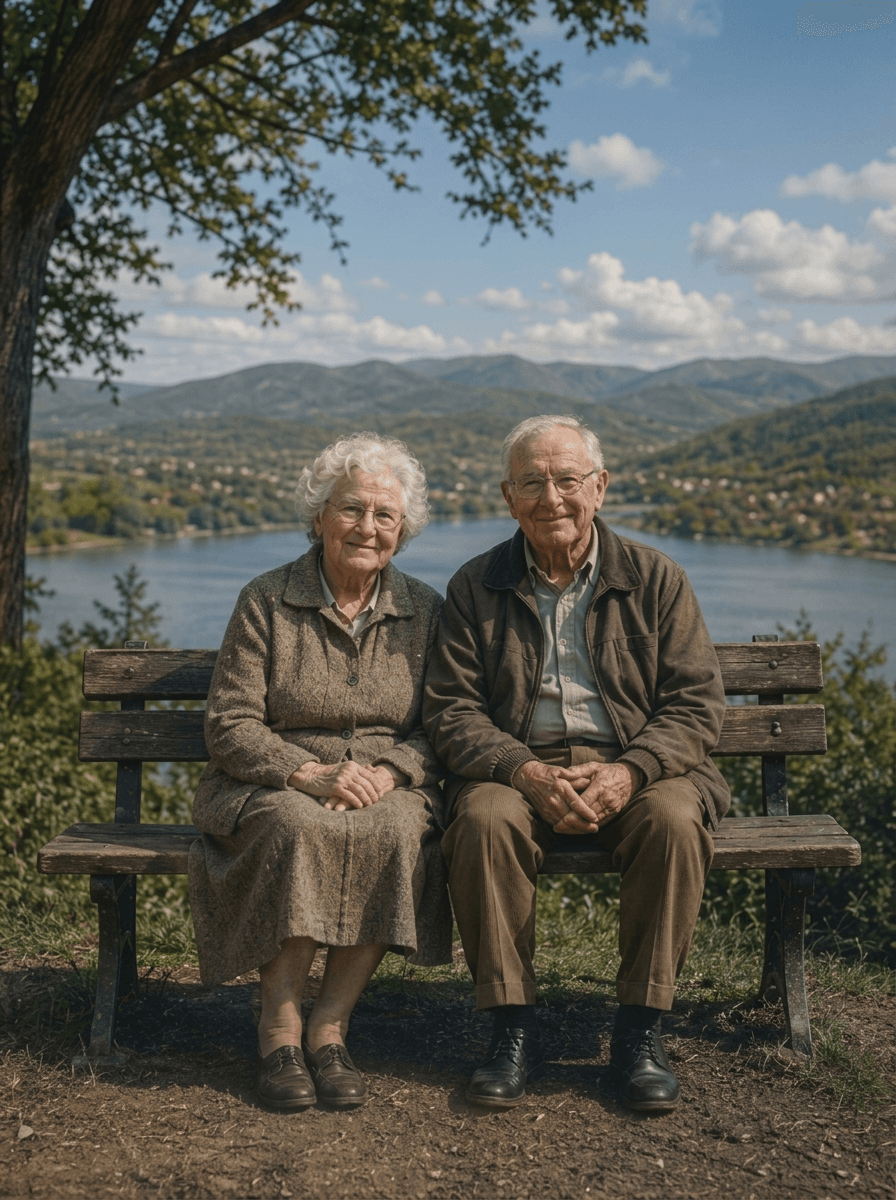
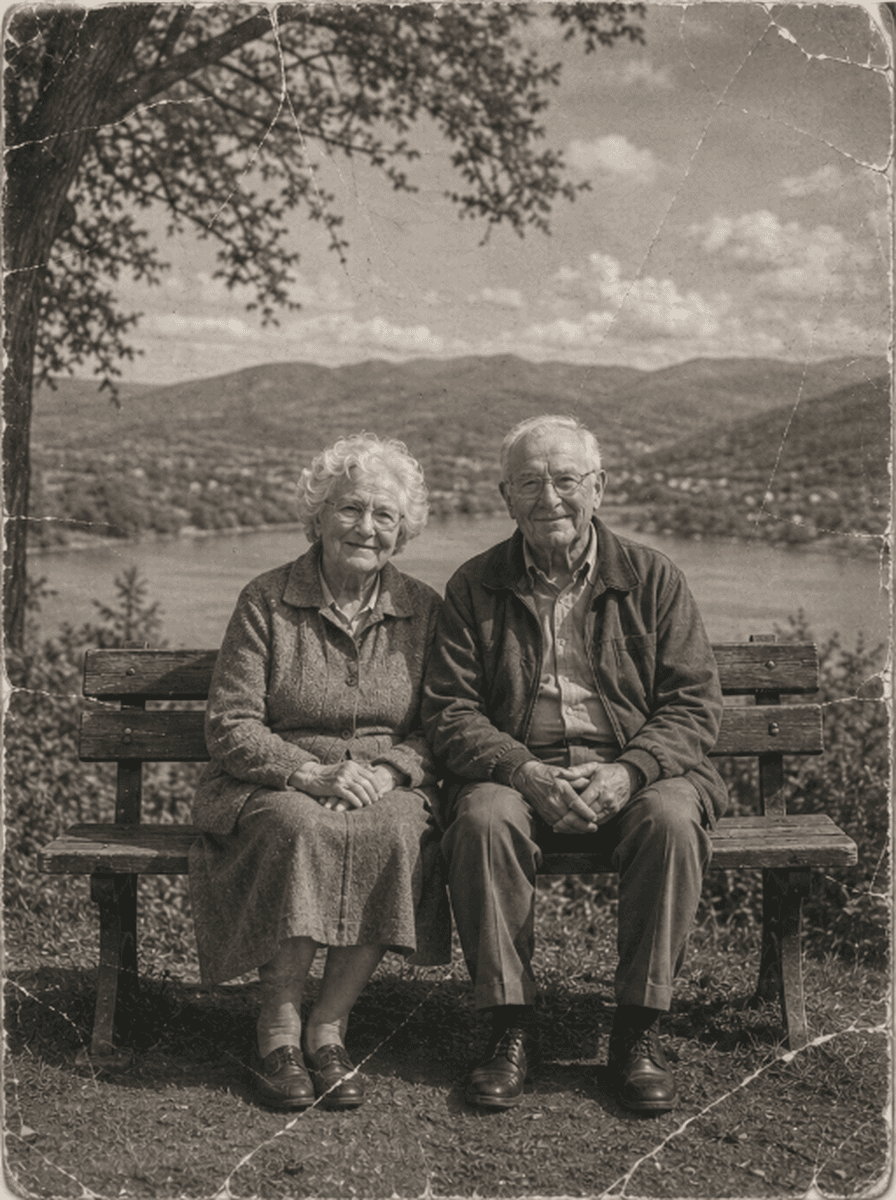
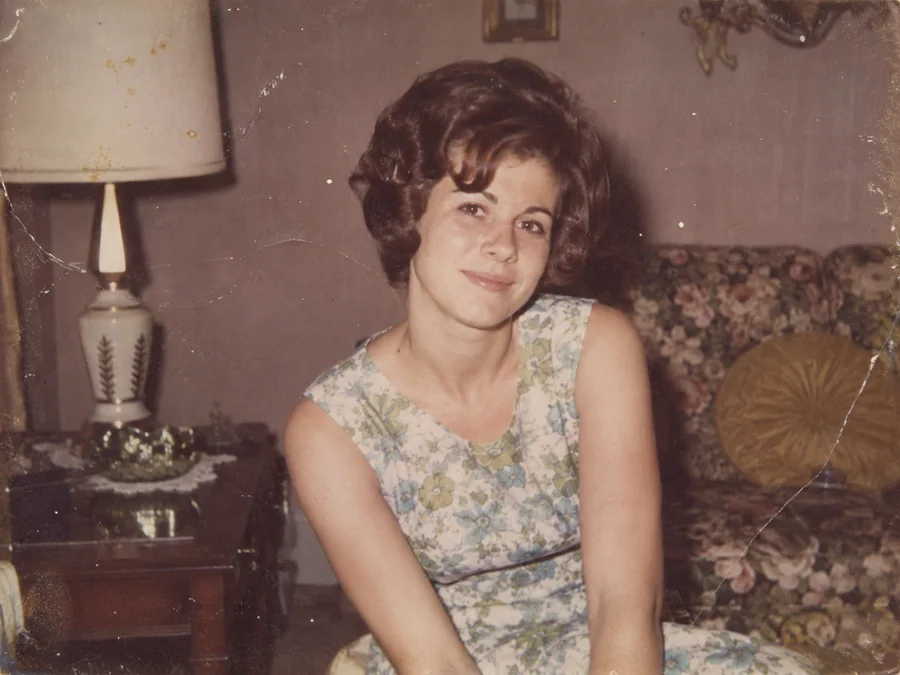
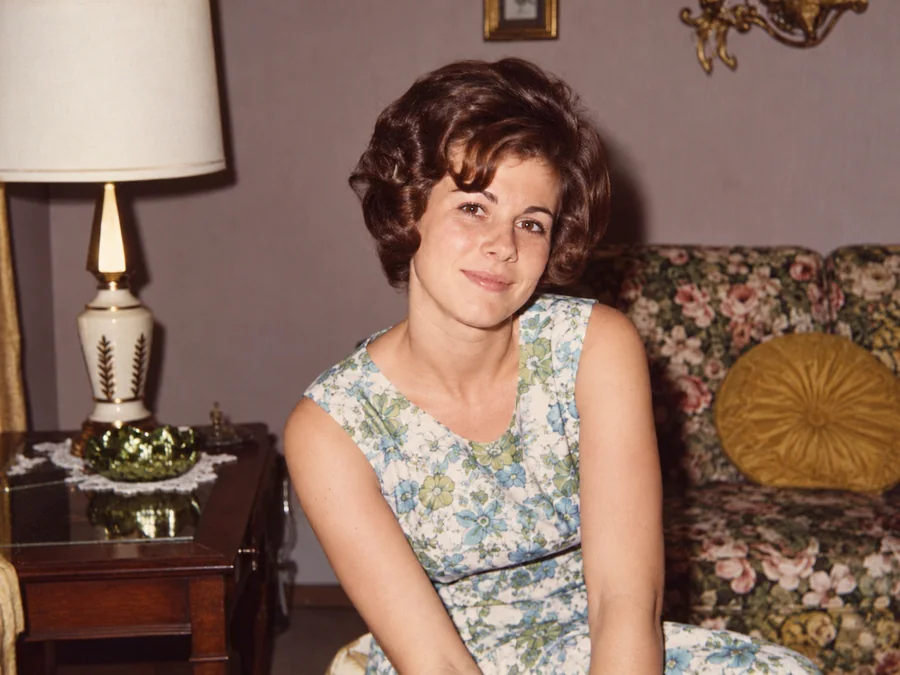
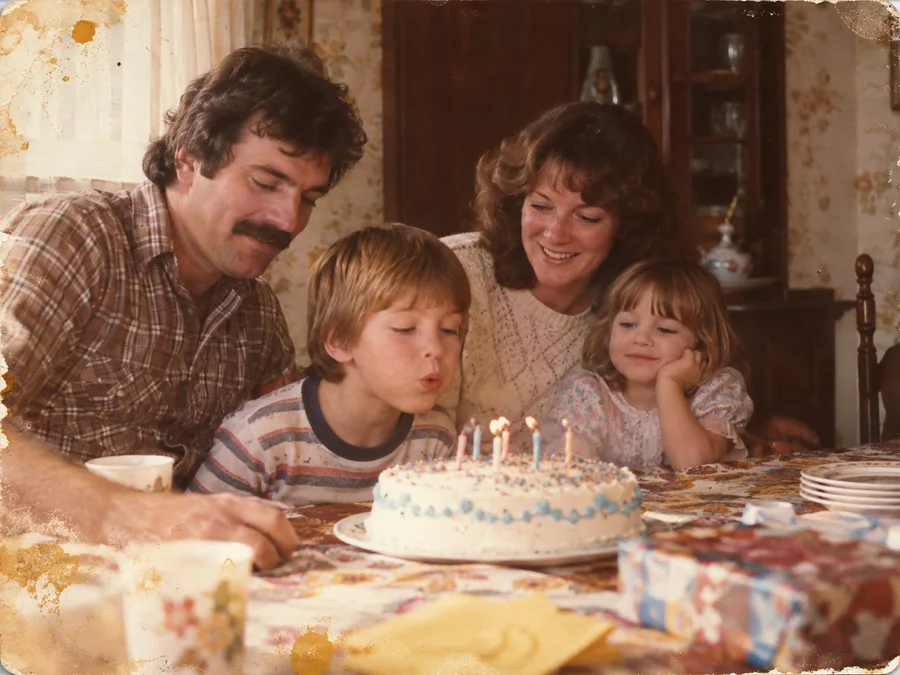
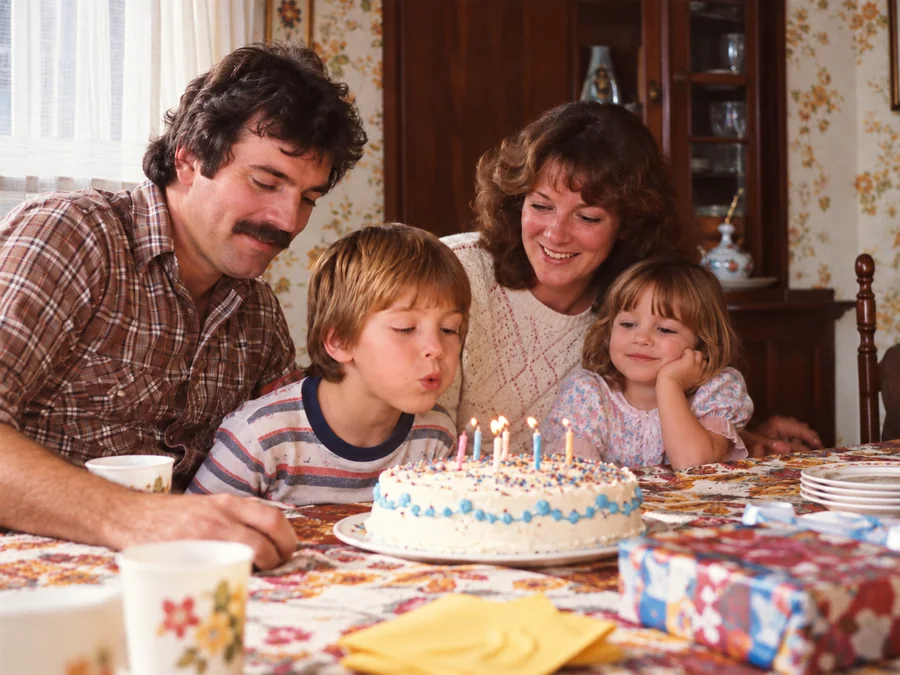
Shared restoration and colorization example. This is the same sample across our guides; it does not demonstrate every type of damage. Results vary by source photo.
How Our AI Restores Your Photographs
Upload Your Photo Scan
Drag and drop any scanned photograph (JPEG, PNG, or WebP up to 10MB) into the ImgHeal intake dropzone.
Neural Model Inpainting & Enhancement
ImgHeal processes your uploaded photo with AI to create a restored image. Processing time and results vary.
Inspect & Download Print Master
Compare the restored image with the original, then download the result if it meets your needs.
Restoration and Colorization in One Workflow
Upload a digital copy, generate an edited version, and compare it with your source photograph.
Scratches and Surface Wear
Try the AI restoration workflow on a photo with visible scratches or surface wear.
Facial Detail Clarification
Try restoration on a portrait and compare the generated facial details with the original.
AI Colorization
Generate AI color for a black-and-white photo. The result is an interpretation, not a record of the original colors.
Answers About AI Photo Restoration
What is AI photo restoration?+
AI photo restoration uses an image model to generate an adjusted version of an uploaded photo. The result depends on the original image and may change details, so compare it with the source before downloading.
How is ImgHeal different from generic AI photo enhancers?+
ImgHeal focuses on restoring and colorizing older or damaged photographs. AI results can alter image details; use the before-and-after comparison to decide whether the result suits your photo.
Can I use ImgHeal AI photo restoration for free?+
New accounts receive three complimentary restorations. Sign in, upload a photo, review the result, and download it.
What types of photographic damage can the AI repair?+
ImgHeal can be used to restore old or damaged photos and to colorize black-and-white images. The result varies with the source photo and the type of damage.
Is my personal data and photo upload confidential?+
Uploads and account data are handled under the ImgHeal Privacy Policy. Review it for details about data storage, processing, and deletion.
Choose the right starting point for your photo
ImgHeal works on a digital copy of your photograph. Restoration and colorization create a new image, so keep the original scan for comparison and future edits. Start with the clearest copy you can obtain rather than a screenshot of a small preview.
Before you upload
Scan the complete print, including its edges, or photograph it straight on in even light. Avoid glare and remove unrelated background from the digital copy. Upload the photo in the dashboard, choose restoration or colorization, then review the generated image before downloading.
What to check in the result
Compare faces, lettering, clothing, and small objects with the source. AI may invent detail where information is missing. A cleaner image is not proof that the new detail is historically correct; keep both versions when preserving a family record.
Photo Restoration Tools
Explore Dedicated Restoration Services
Choose a photo restoration workflow based on the image you want to improve.
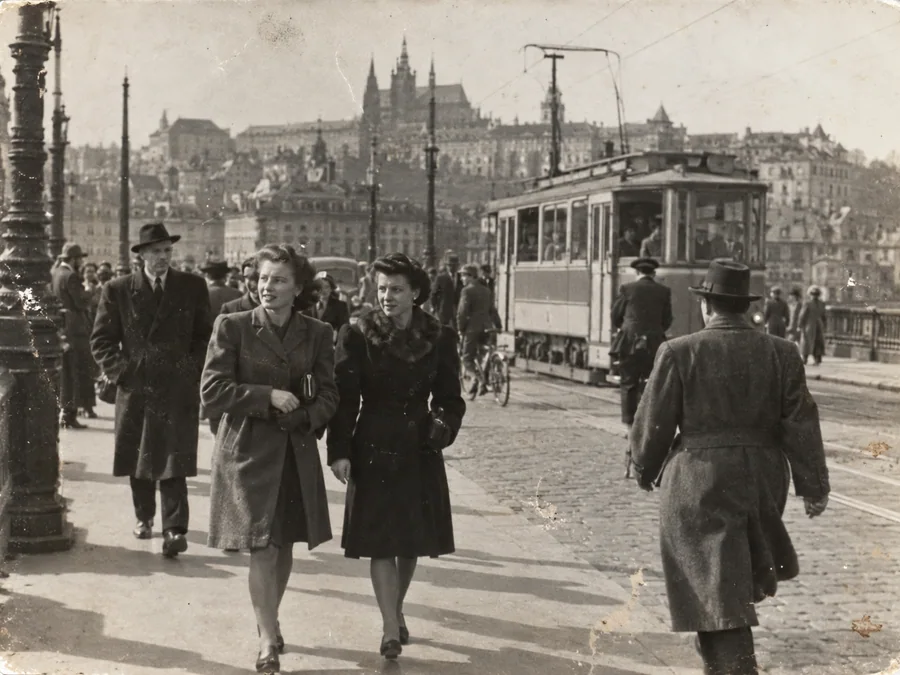
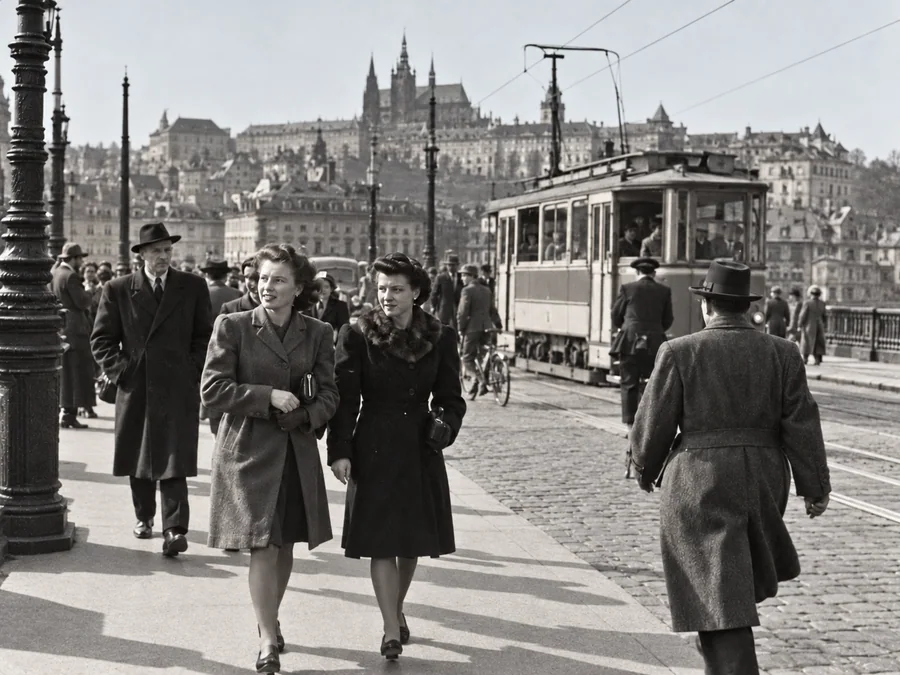 BeforeAfterIllustrative
Restore Old Photos
Try AI restoration on a faded, scratched, or damaged old photograph.
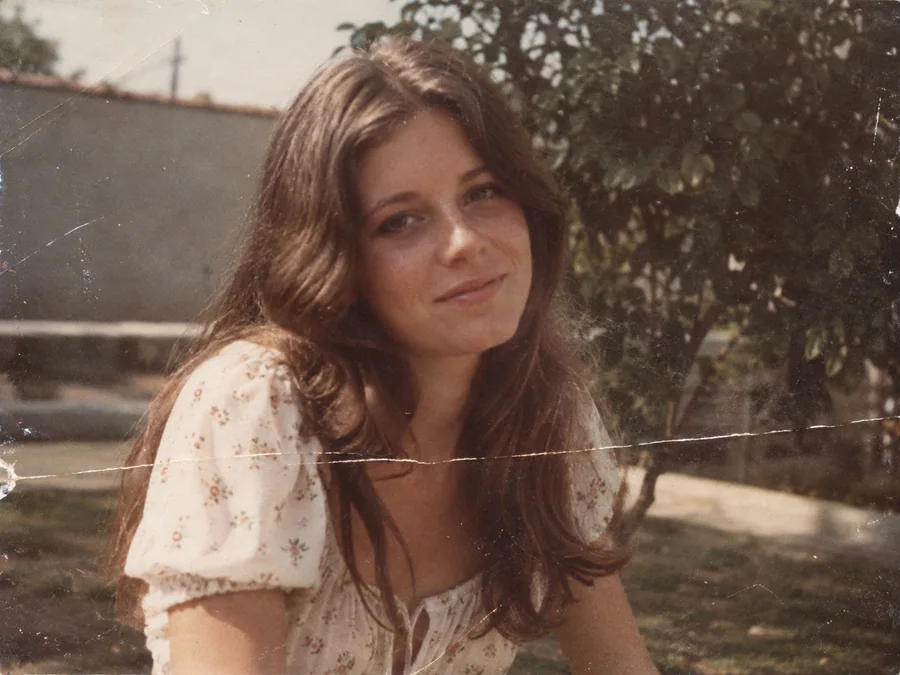
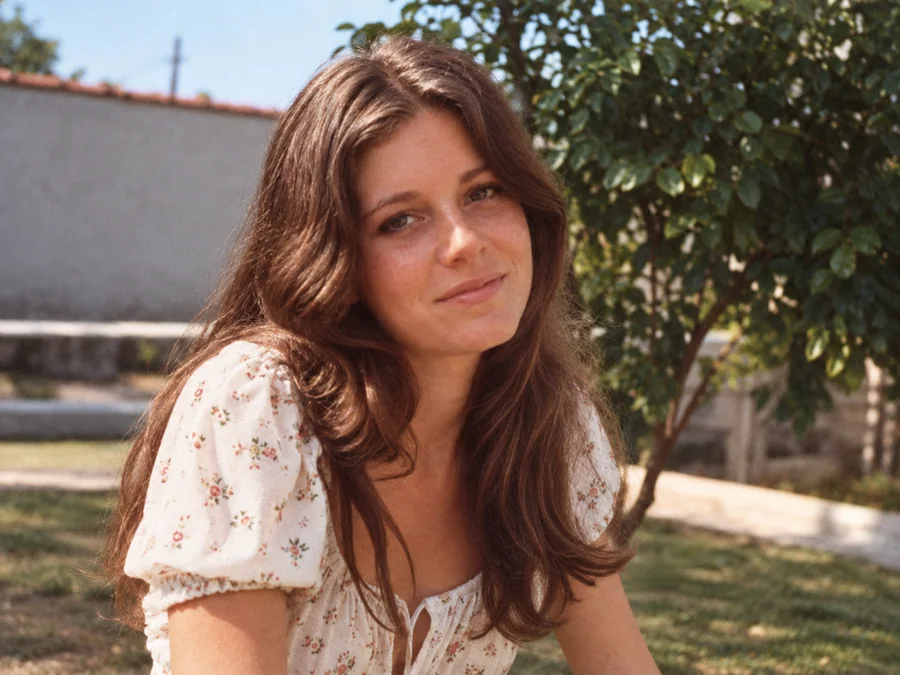 BeforeAfterIllustrative
Remove Scratches & Creases
Try AI restoration on a photo with scratches or creases.
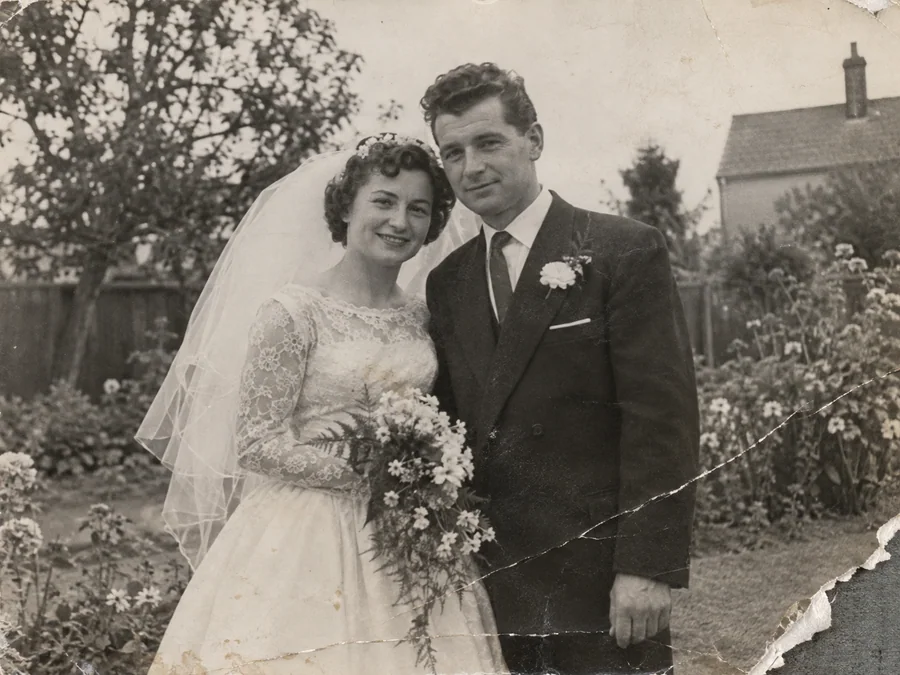
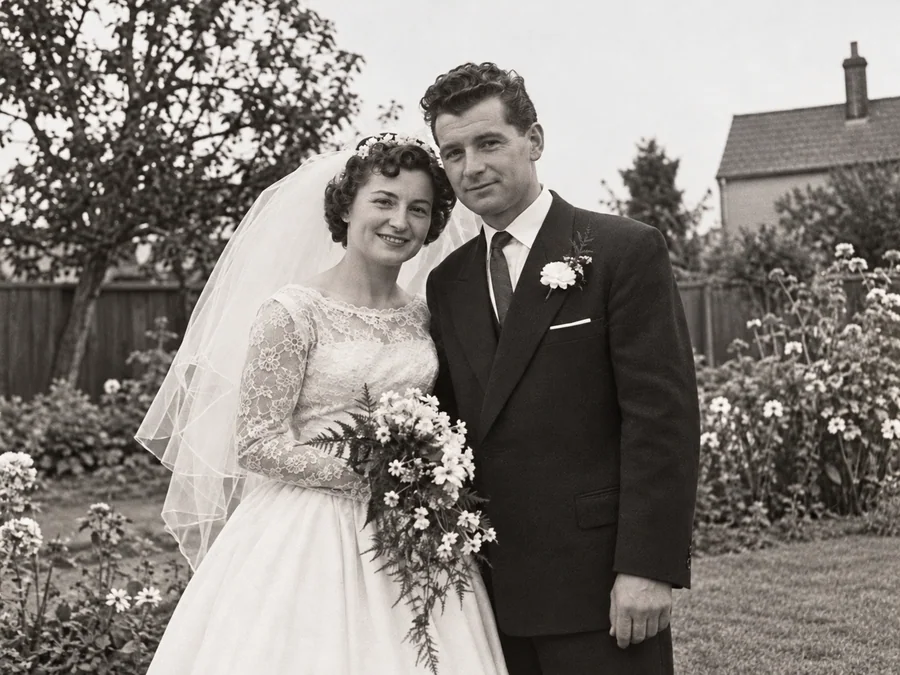 BeforeAfterIllustrative
Repair Damaged Photos
Generate a restored version of a torn, creased, or damaged photo.
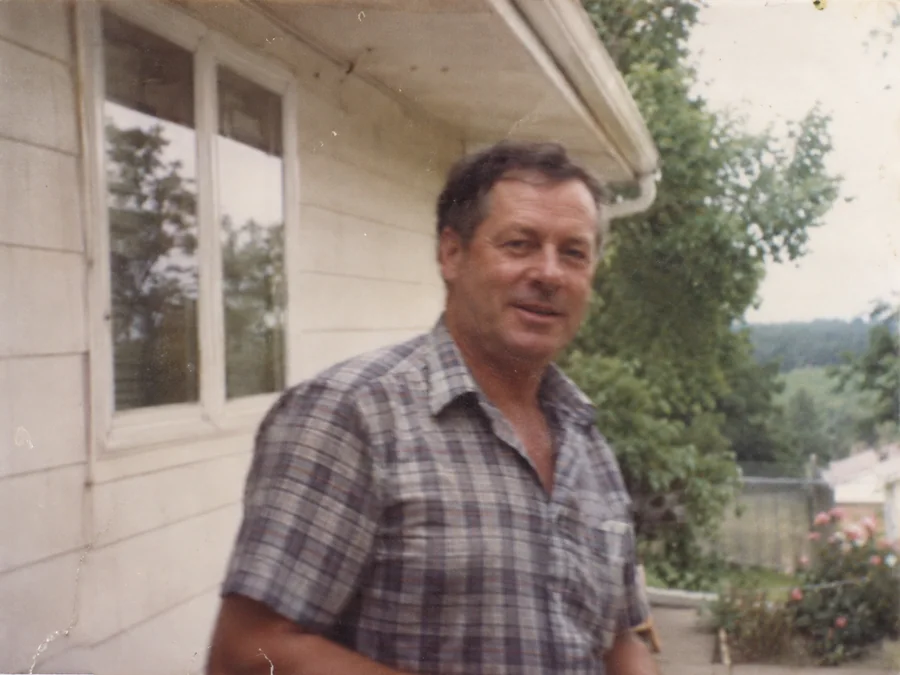
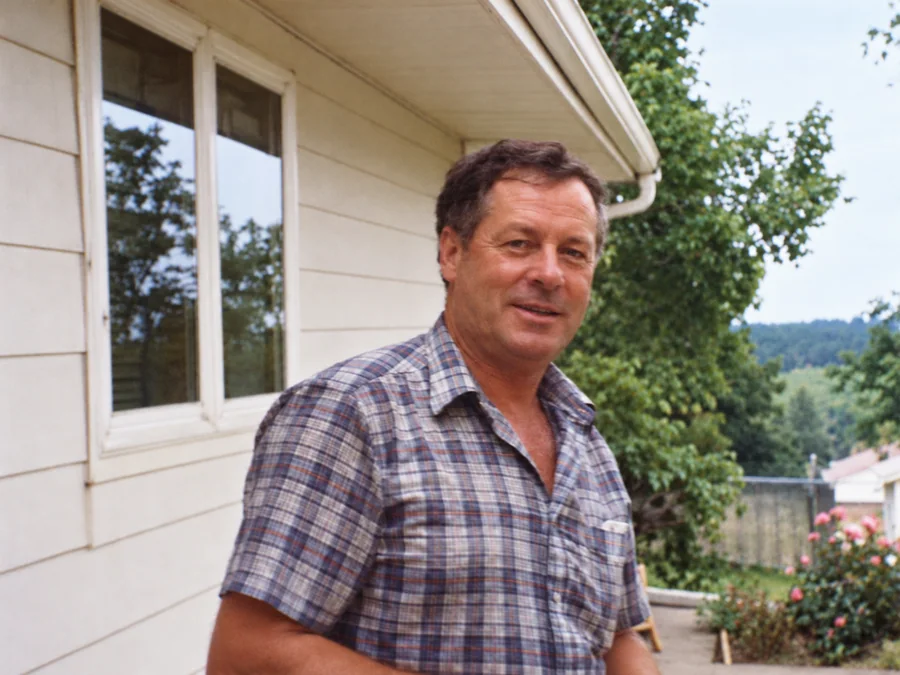 BeforeAfterIllustrative
Fix Blurry Photos
Try AI restoration on a soft or blurry photo. Results vary by image.
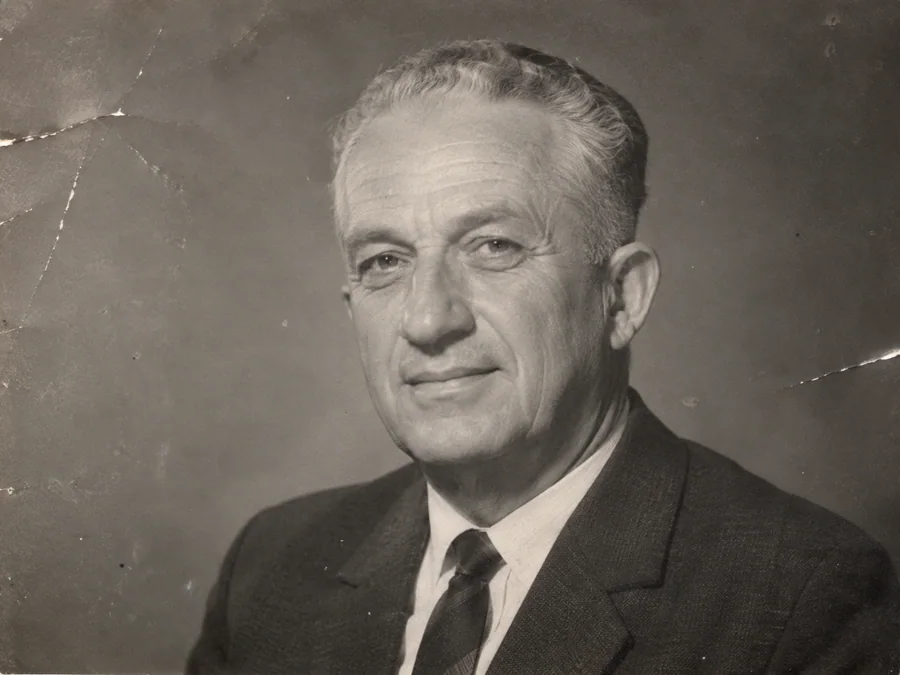
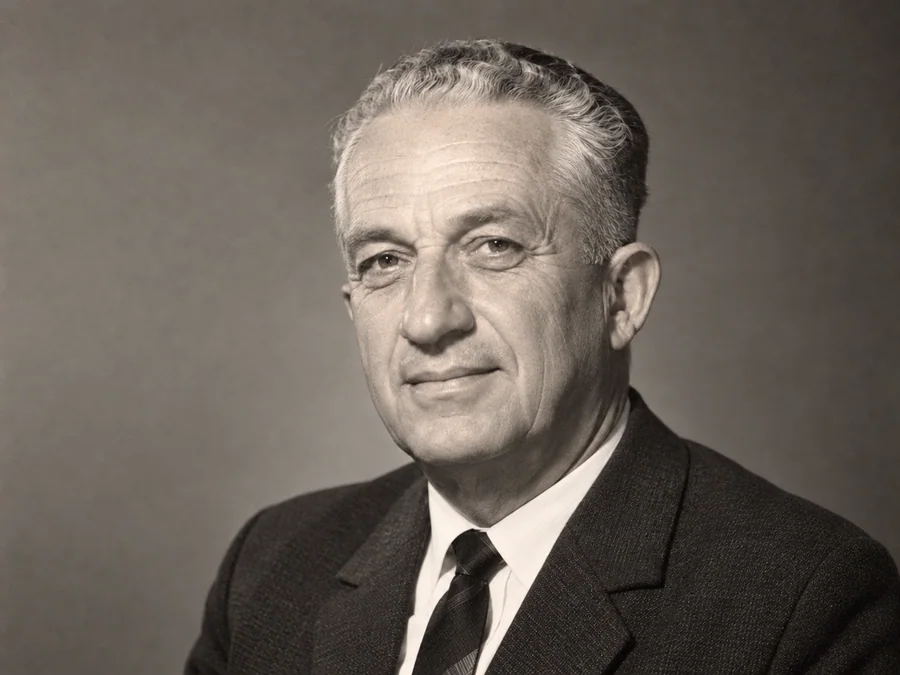 BeforeAfterIllustrative
AI Face Restoration
Try AI restoration on an old portrait and compare the result.
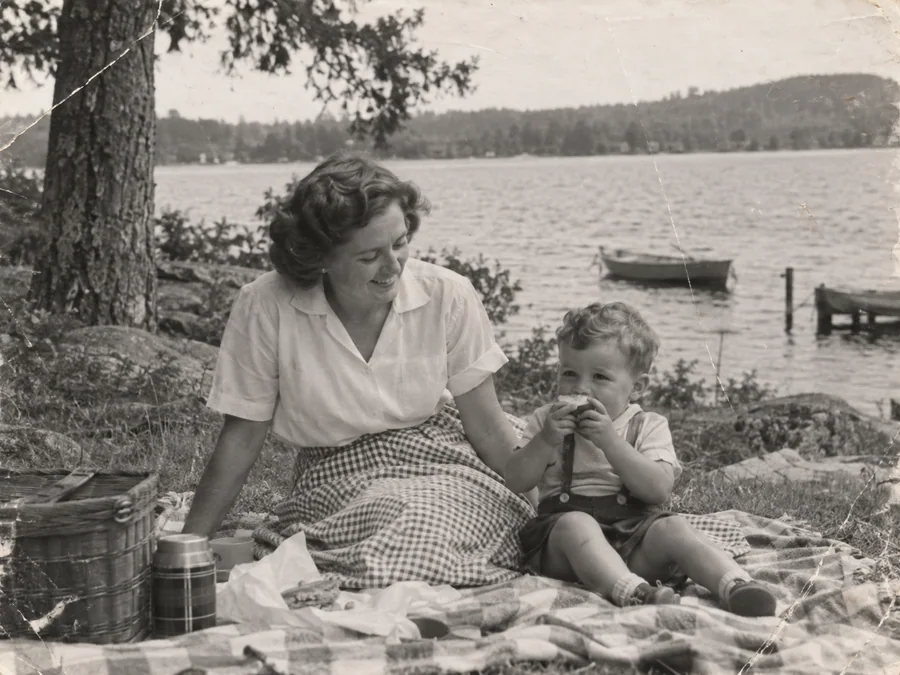
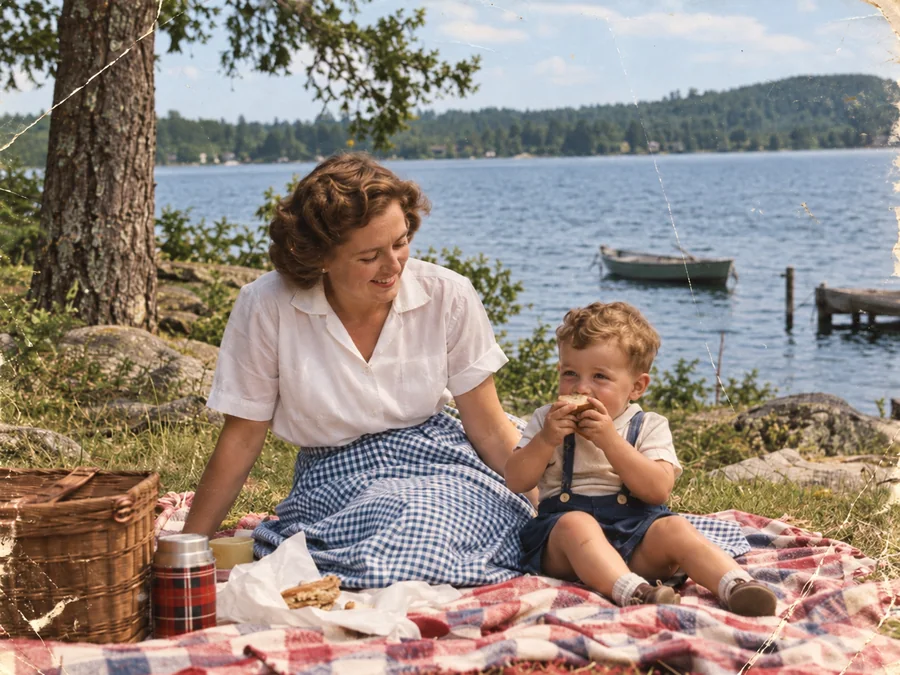 BeforeAfterIllustrative
Colorize B&W Photos
Generate AI color for a black-and-white or sepia photo.
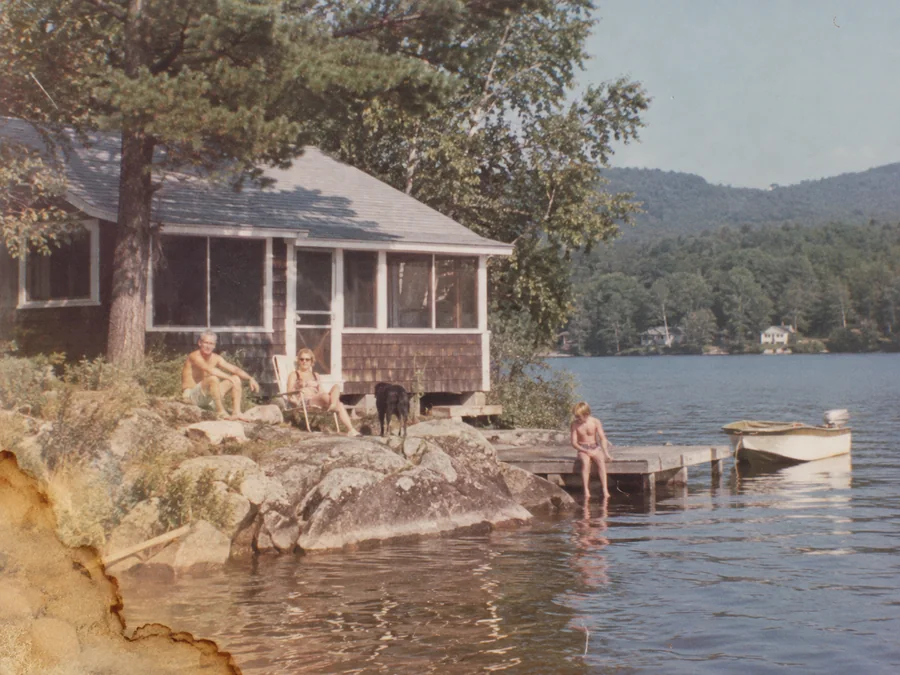
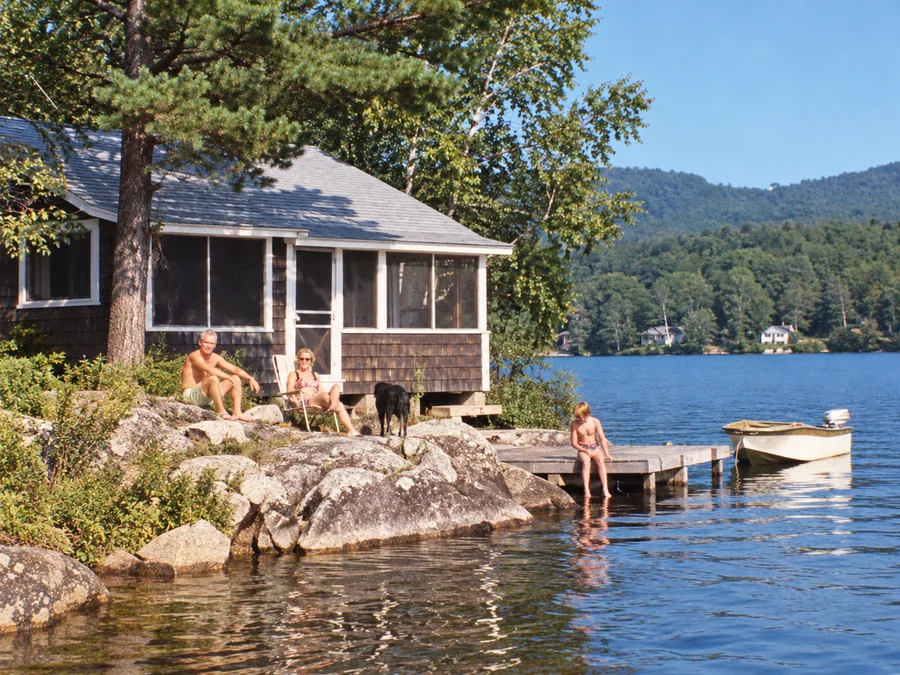 BeforeAfterIllustrative
Water Damage Repair
Try AI restoration on photos with water marks or stains.
 BeforeAfterIllustrative
Restore Vintage Photos
Try AI restoration on a vintage or faded photograph.
 BeforeAfterIllustrative
Restore Family Photos
Create a restored version of an old family photo.